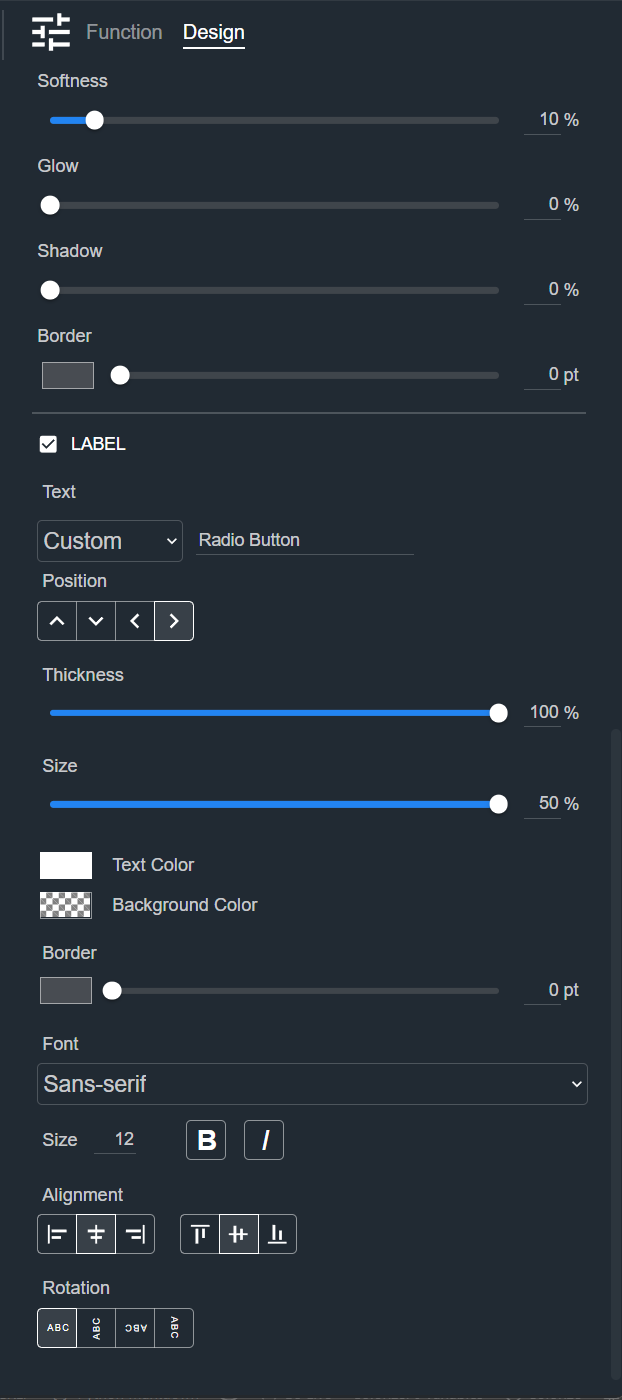
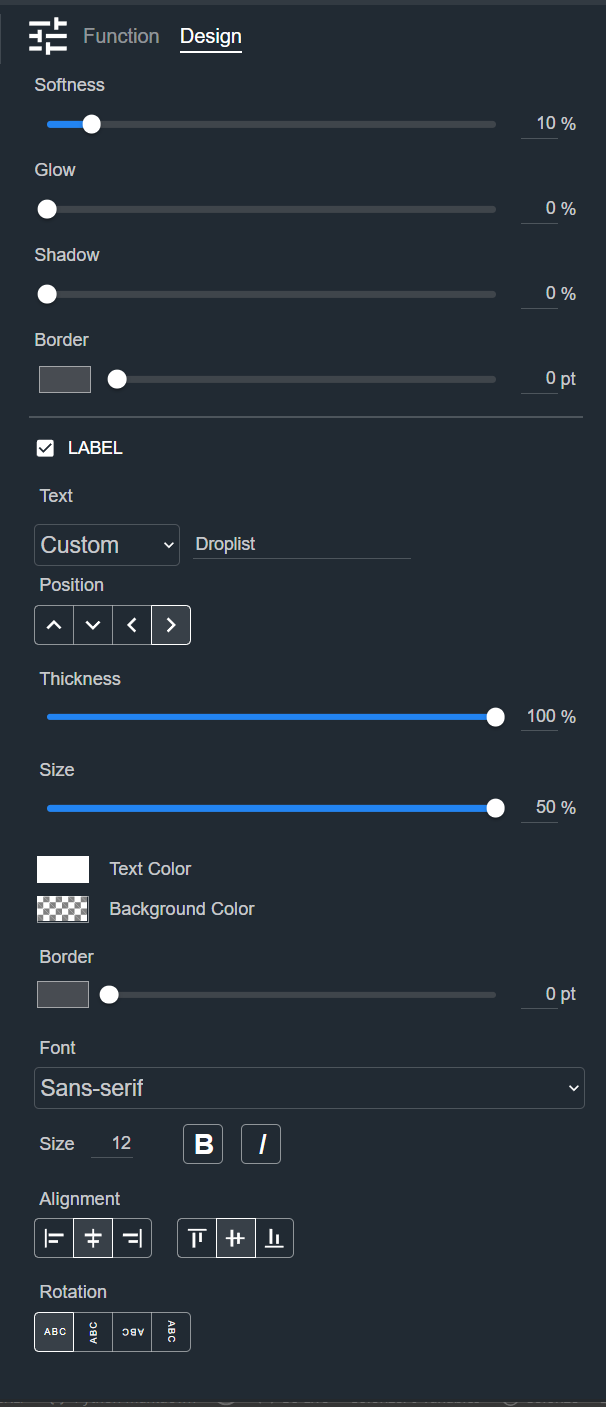
Radio Button and Droplist
A Radio Button and a Droplist both let the operator choose one option from a set. A Radio Button shows every option at once as a set of segments, while a Droplist shows the selected option and opens a list to choose from. The two controls have the same Design sections, so they are described together here. The Design tab styles the selected Radio Button or Droplist on a Control Panel, and the sections appear top to bottom in the Modifier Panel.
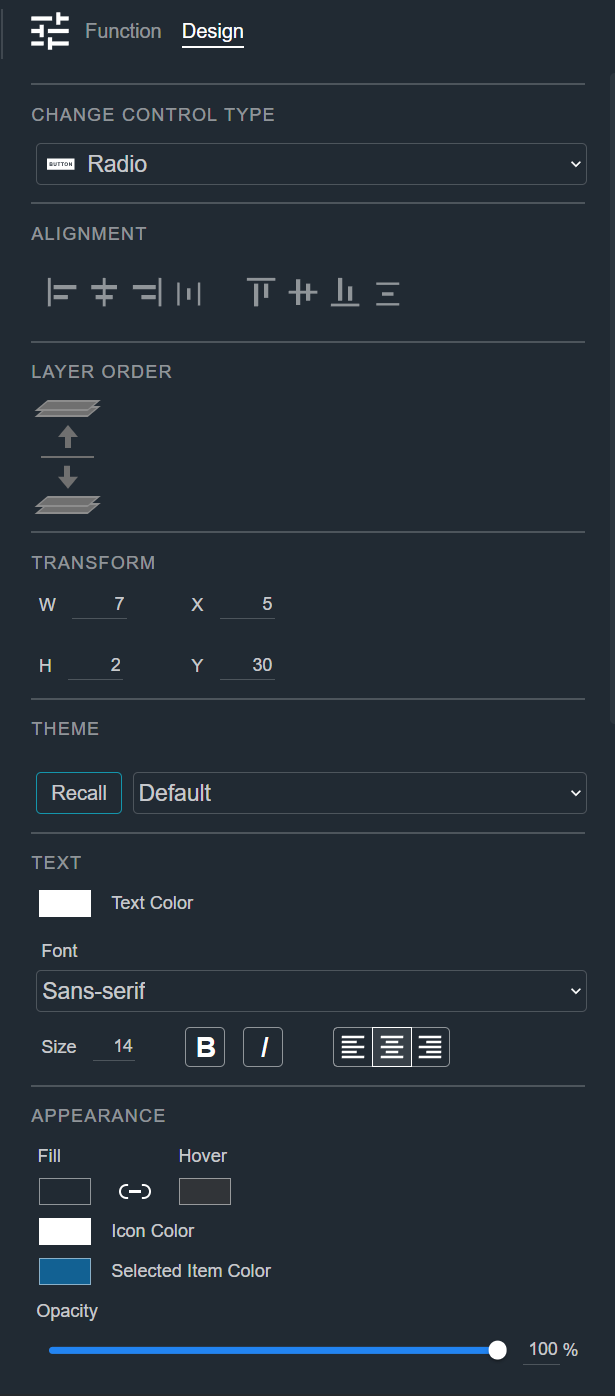
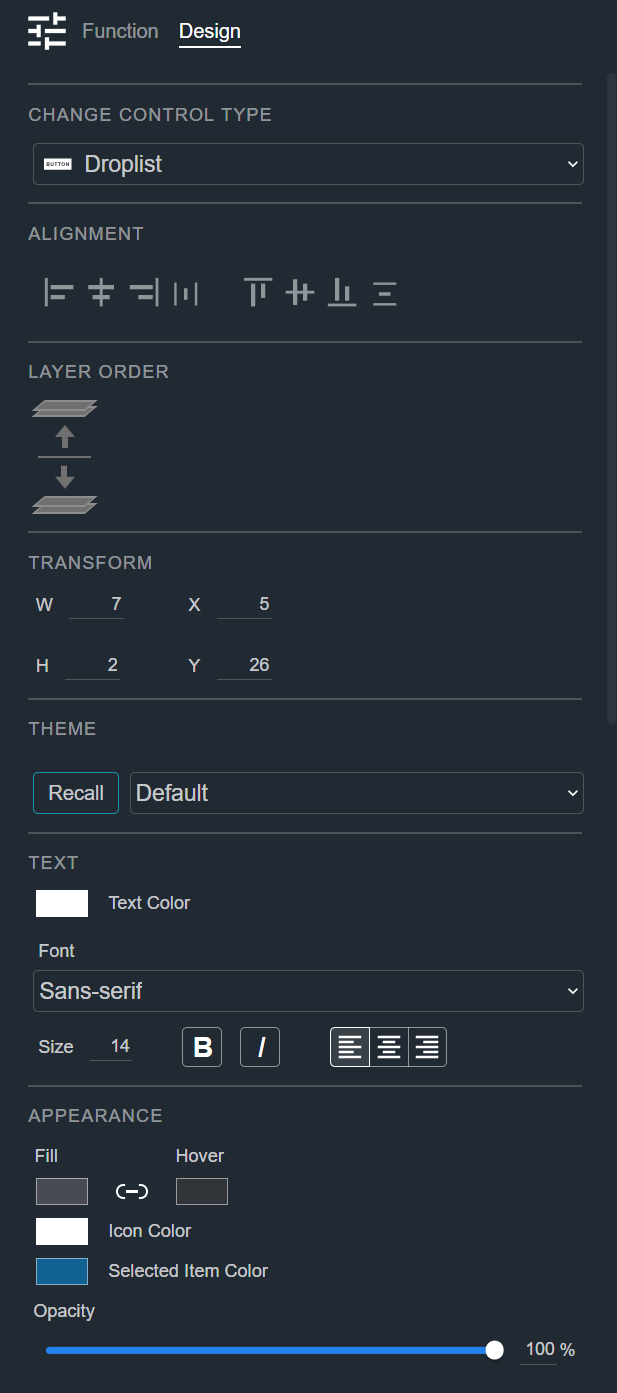
Change Control Type
See Common Controls.
Alignment
See Common Controls.
Layer Order
See Common Controls.
Transform
See Common Controls.
Theme
See Common Controls.
Option Text
The Option Text section sets how many options the control shows and the text shown for each option: the segments of a Radio Button, or the items in a Droplist.
- # Options — The number of options, from 1 to 100. Available only for an unmapped control. Changing it adjusts the control's Max value in the Function tab. For a mapped control, the number of options comes from the mapped parameter.
- Options — One text field per option. Type in a field to replace that option's text, for example with a short abbreviation. Leave a field blank to show the option's default text.
- Clear to Defaults — Removes all of your custom option text and restores the default labels from the mapped parameter. Available only for a mapped control.
Custom option text changes only what the control displays. Choosing an option still selects the same underlying value.
Your custom text is kept with the control:
- If you reduce # Options, the hidden options keep their text, and it reappears if you increase the number again.
- If you customize an unmapped control and then map it, the number of options may change to match the parameter, but your custom text stays until you click Clear to Defaults.
Preset Group Selectors
To make a Radio Button or Droplist that selects from all the presets in a preset group, set its Function to Recall Group Presets. Each Option Text field then starts out showing the name of the preset it recalls, and # Options is not shown because the number of options always matches the number of presets in the group. Editing a field changes only the text this control shows; it does not rename the preset.
Text
See Common Controls.
Appearance
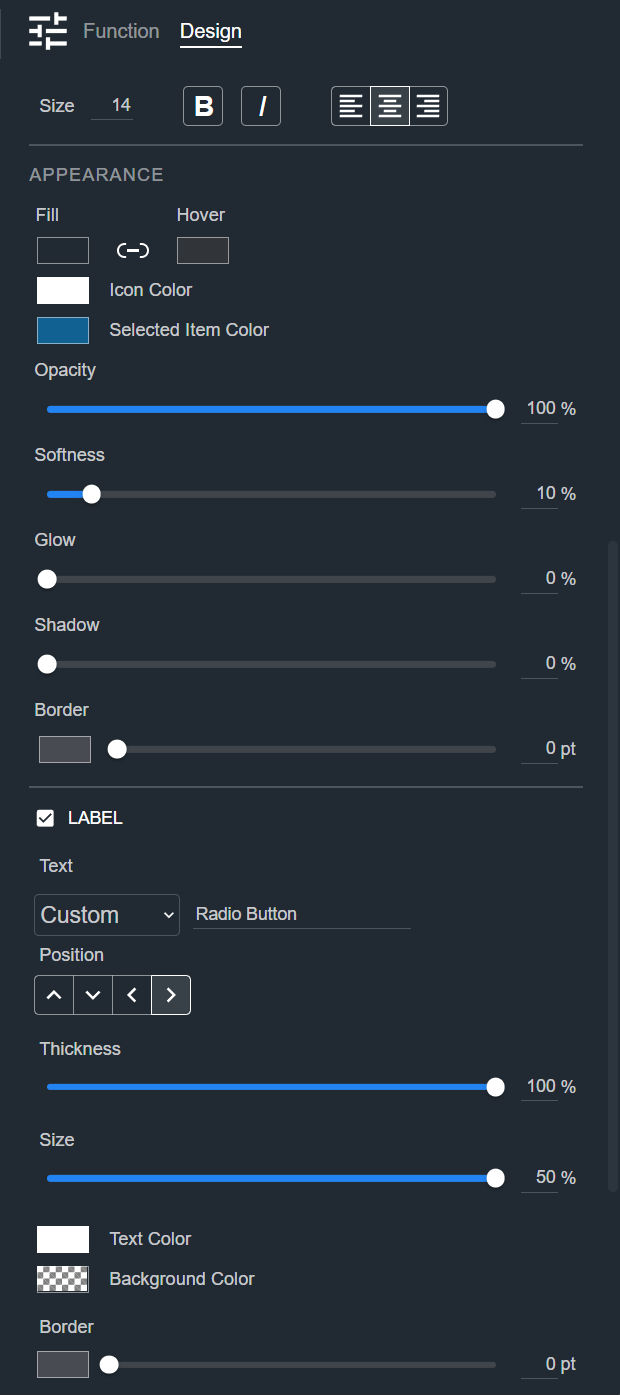
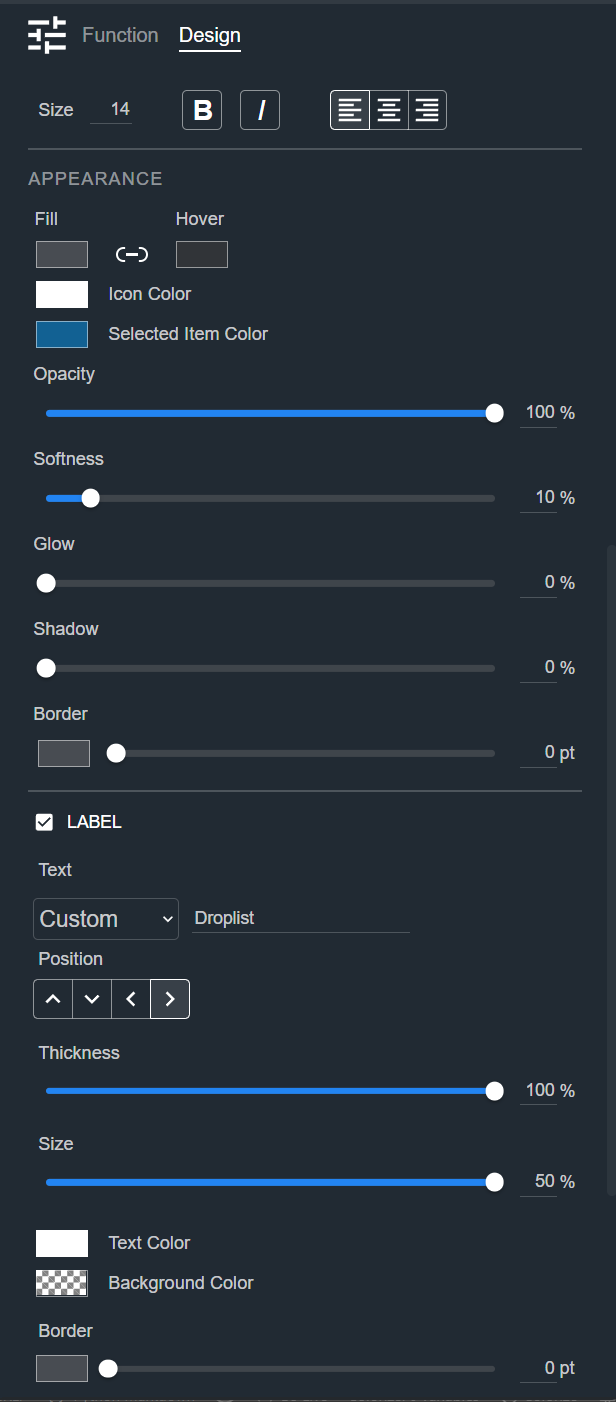
The Appearance section adds these properties to the common appearance properties. See Common Controls.
- Selected Item Color and Hover — The color of the selected option, and the color an option shows when the pointer is over it. The two colors are linked: use the link icon between them to set the Hover color from the Selected Item Color.
- Caret Color — The color of the arrow that opens the list. Droplist only.
Label
See Common Controls.