Custom Control Theme Manager
Overview
The Custom Control Theme Manager (CCTM) allows users to create and manage custom themes for controls. A theme defines how controls appear when applied. Users can apply a theme by selecting it from the dropdown menu in the CPG View Modifier Panel and clicking Recall, which applies the theme to selected controls. Themes can also be applied to unmapped controls when dragging them from the toolkit to a Control Panel.
Themes contain styling information for all controls simultaneously, meaning a single theme defines the look and feel for all different control types at once. This is particularly useful for controls like faders and meters, which share properties but often require different styling.
It is important to make a distinction between custom themes and system themes.
- System themes are pre-created by Symetrix and hard coded into the Cognio application. These system themes cannot be edited in any way or viewed in the CCTM. They may be altered or added in future official Cognio updates.
- Custom themes are created by the user of Cognio and may be saved and shared. If unspecified, for the rest of this document assume that a "theme" is referring to a user definable custom theme, not a system theme.
Workflow Summary
- Create a new Custom Theme using the Toolkit.
- Edit the pre-placed controls in the Edit View.
- Save the finalized Theme and apply to Controls when design Control Panels
- Export the Theme to backup, transfer to other computers, and/or share with others.
Functional Areas
Toolkit
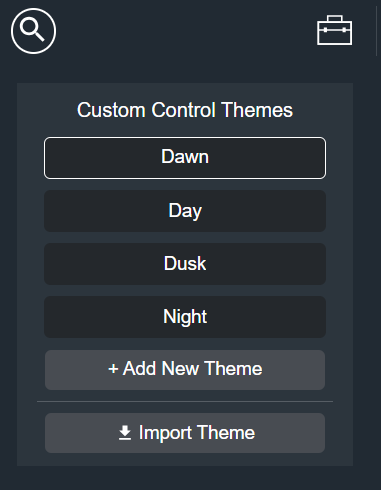
The Toolkit lists all user created themes. These are available install wide so all the Custom Themes will be shown no matter the open Site.
Select a theme for editing in the Editing View and Modifier Panel.
Click "+ Add New Theme" to make a new theme for editing.
Click "Import Theme" to import a theme file into the installation.
Editing View
The main view displays all the controls in a typical size.
Click on a control to edit its design parameters in the Modifier Panel.
Shift + Click to select more then control to edit them simultaneously in the Modifier Panel.
Switch to Operation mode to interact with the Custom Theme.
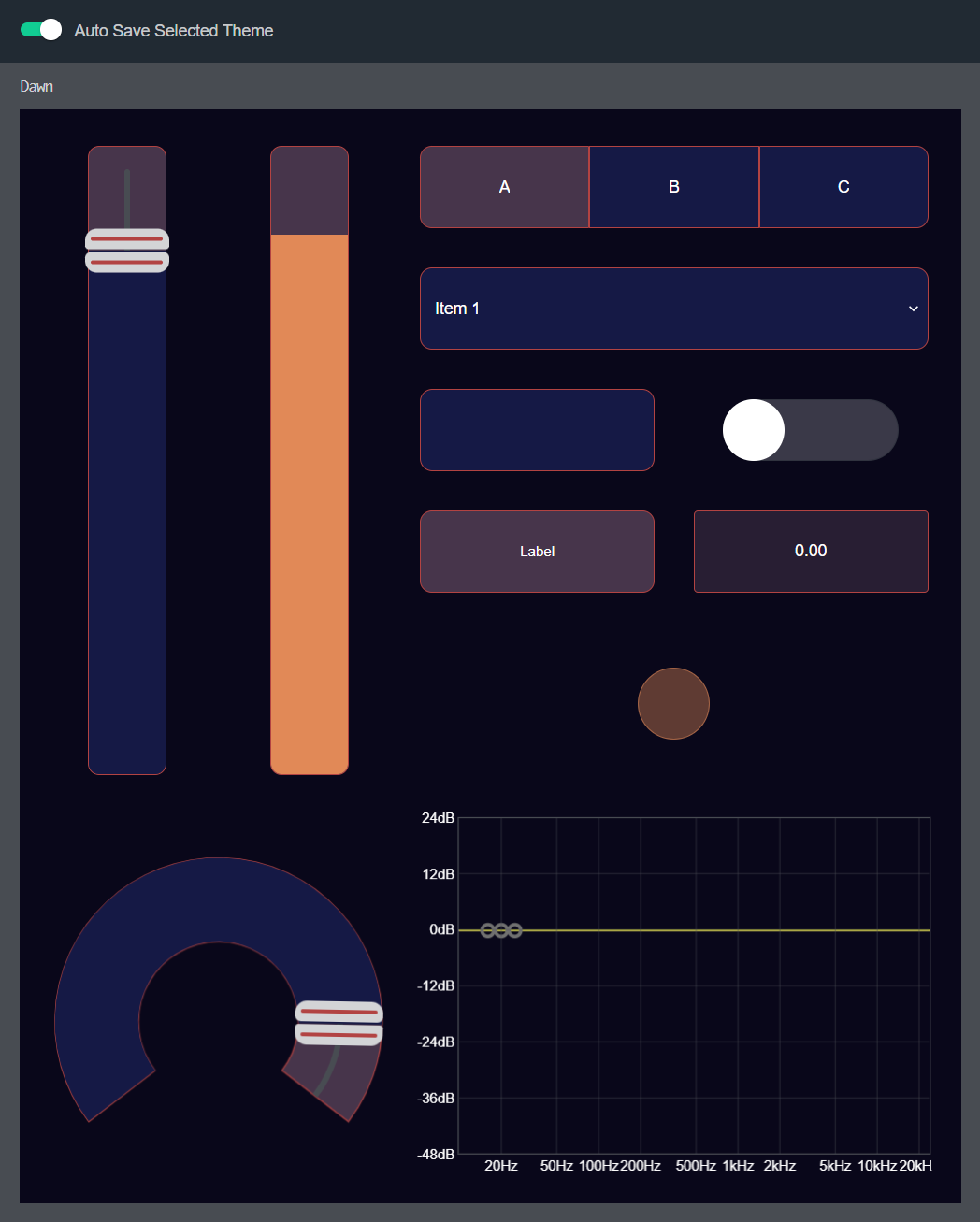
The "Auto Save Selected Theme" switch at the top will automatically save the Theme as changes are made when enabled.
Modifier Panel
The modifier panel displays the Design customization settings for the selected Control(s) in the Edit View.
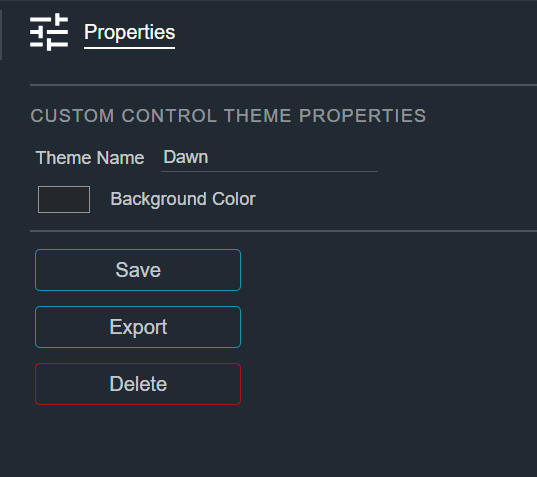
With no Control(s) selected in the Edit View, the Modifier Panel will show Properties to configure the Selected Preset.
- Theme Name - Allows customization of the name
- Background Color - Choose a background color to display with the Custom Theme. This color is only used for Theme creation; it is not applied to the Control Panel when a Theme is recalled.
- Save - Click this button to Save the selected Theme. The Auto Save feature can be enabled to do this automatically. Saved Themes can be accessed in any Site when create Control Panels.
- Export - Click this button to Export the selected Theme. This will present a Save File dialog allowing you the Theme to be saved to the local file system and then share it with others.
- Delete - Click this button to Delete the selected Theme.