Cognio DesignOps 1.1.1 Release Notes
New Features
- Added Managed Device support for the T-5 v2, T-7, and T-10 touchscreens. A paired touchscreen shows the Control Panel Groups served by its Cognio Smart Device. The touchscreens need firmware 9.0.4 or later, and T-5 v1 touchscreens (the original T-5 and T-5 Glass) are not supported. See T-Series Touchscreens.
- Added a Panel Size setting to Control Panel Group properties. Choose a T-5 v2, T-7, or T-10 touchscreen, with the T-10 in landscape or portrait, to set the panel's width and height to its resolution, or Custom to enter them yourself. See Panel Size.
- Added a firmware chip to the Sync Site dialog, which flags devices whose firmware doesn't match DesignOps. Click it to update the device. See Firmware Chip.
- Added a background sync indicator. After a push, the Navigation Bar and each Space show the work the devices are still doing, such as transferring assets and programming Dante, and DesignOps asks you to wait before you quit or open another Site while it runs. See Background Sync Indicator.
- Added script control of labels and options in Control Panel Group scripts.
NamedControl.SetProperty(name, "label", "Source|Mic|Laptop|Streaming")sets a Radio Button or Drop List's heading and options, and a Button's off and on text. See Setting Labels and Option Text. - Added a
Navigate to ALL CPG Viewcommand to the Navigation function. A control set to it opens the All Control Panel Groups view in DesignOps, or the list of Control Panel Groups in the Web App. See Navigation.
Fixes and Improvements
- Application: The splash screen could be zoomed, resized, and scrolled while the app launched.
- Control Panels: A Control Panel Group added to a newly created Space could disappear moments later, sometimes until the Space refreshed.
- Control Panels: A Gain channel control added with Add to Control Panel Group and placed on the panel later had a broken layout, with its buttons stacked above the fader and no level readout.
- Control Panels: After deleting panels down to the Main Panel, a newly added panel could get the wrong number, such as Panel 4 when only two panels existed.
- Control Panels: Basic shapes and icons showed Theme, Parameter Range, and Mode settings that don't apply to them.
- Control Panels: Changes made online to a very large Control Panel Group view were lost when the device rebooted.
- Control Panels: Controls mapped to another device didn't update when more than one Control Panel Group on the same device was open.
- Control Panels: Readouts on faders and knobs didn't update in real time while the control moved, and sometimes missed the final value after a fast move.
- Control Panels: The Modifier Panel was blank in the Control Panel editor instead of opening the Properties tab when a Control Panel Group or panel was selected.
- Control Panels: The Space and module branches in the Toolkit's Placed Controls and Unplaced Controls lists always started expanded and reopened each time a control was placed, pushing Basics and Icons off the screen.
- Control Panels: Time readouts showed the wrong units, for example 0.25 ms for a quarter-second Delay Time.
- Dante: A sync reported success, with no warning, when Dante programming failed because the C20's Dante port wasn't reachable.
- Dante: Patches failed when a device's Dante name had changed on the network.
- DSP Usage: Offline DSP usage estimates for the same site could differ widely between computers.
- Firmware Update: Updating firmware over Wi-Fi or a slow network could fail.
- Installer: Installing over 1.0.1 left duplicate Cognio entries in Installed Apps.
- Installer: Uninstalling 1.0.1 from a PC that also had 1.1 broke the 1.1 uninstaller, which then failed with "Windows cannot find unins001.exe".
- Managed Devices: Channel names on xIO Managed Devices couldn't be edited in Properties.
- Managed Devices: Drop List controls on built-in Managed Device control panels could crash the app.
- Managed Devices: Exporting a locked Managed Device could show errors the first time after a clean install.
- Managed Devices: Imported Managed Devices incorrectly kept pairing information, so clicking Pair could pair them automatically.
- Managed Devices: Managed Devices with hundreds of controls were slow and could hang the app.
- Meters: In Operation mode, Control Panel meters placed from Unplaced Controls didn't move, Gating Automixer gate LEDs never lit, and signal LEDs stayed lit after audio stopped on a synced C20.
- Meters: Meters could sometimes show small glitches or dropped frames.
- Meters: The clip LED only latched if the meter's controls were open when the clipping happened.
- Modifier Panel: Identify and Open Web App did nothing in Operation mode. Buttons that are unavailable, such as Get Device Logs in Operation mode, now say why in their tooltip.
- Module Configurations: Importing a configuration that collided with an existing one offered no Cancel option.
- Modules: The Multi-room Automixer mode Drop List showed a different mode from the one actually set.
- Patching: Changed the unpatched icon to orange so it stands out.
- Patching: Modules weren't listed alphabetically in the patching list's Module List.
- Patching: Patching a multi-channel Input module to a Managed Device failed unless a contiguous block of receive channels was free.
- Patching: When you paste or duplicate modules, or duplicate or import a Space, patches between the copied modules now point at the copies. Patches that can't be kept, such as patches to another Space's device inputs, or from modules that weren't copied when pasting into another Space, are removed, and a Site Log warning tells you to reconnect them.
- Presets: The Presets Manager didn't refresh when a preset in a Preset Group was updated from the Web App.
- Pull Site from Hardware: Save was available after a pull, when only Save As should be. The manual IP address field also misplaced the cursor when backspacing over a dot, didn't advance between octets, and ignored
Enter. - Scripted Modules: Some Scripted Modules resized themselves while the signal flow was being edited.
- Scripting: Script-driven buttons didn't always pass clicks to the script.
- Scripting: The text of a scripted Label couldn't be edited manually in its properties.
- Signal Path: Copying and pasting a selected module placed the copy on top of the original instead of in the next free cell.
- Signal Path:
Ctrl-dragging an unselected module moved it and cleared the multi-selection. - Signal Path: Modules in the Toolkit didn't widen when the Toolkit was resized, so long module names were cropped.
- Signal Path: Patch text overlapped the signal row drag handles on Control and Audio Output modules.
- Site Files: Open Site and Import Control Panel Group shared one remembered folder, so using one changed where the other started.
- Site View: After a Site was opened, the Online Devices lists in the Toolkit could empty out, or show only some of the devices on the network.
- Site View: Clicking Pair on an unpaired device appeared to do nothing when the Toolkit was collapsed.
- Site View: The Edit button on a virtual Smart Device opened 0.0.0.0 in the web browser.
- Sync: Sync failed with "Site file to archive specified but does not exist" when a long Site name made the Site file's path longer than 260 characters.
- Sync: Sync failed when a module was patched to another Space's Dante input, for example after an input module was copied from one Space to another. Opening the Site now moves these patches to the same Dante input in the module's own Space.
- Sync: Large Site Manager operations could time out too soon and report Site Manager as unresponsive.
- Sync: Pushing a multi-Space site one Space at a time over Wi-Fi, without waiting for each push to finish, could leave the app in a degraded state.
- Sync: The Global Sync indicator stayed green after I/O patches were added or removed.
- Sync: The sync status columns showed inconsistent or incorrect values after a site or Space was unsynced, saved, and pushed.
- Sync: Unsyncing and re-syncing a Space prompted you to save even though nothing had changed.
- Web App: Selecting a Control Panel Group thumbnail used to open it in a new browser tab. Now it opens in the current tab.
- Web App: Vertical Scrolling and Fit Width to View are now on by default for new Control Panel Groups, and are grouped under a Web App heading in Control Panel Group properties.
- Other minor fixes and improvements
- Additions and improvements to Documentation
Not Yet Implemented Features
The following features are currently not supported or implemented. They will be added in an upcoming Cognio DesignOps release.
C20 Firmware
- Acoustic Echo Cancellation (AEC).
- USB-C audio features.
- 96 kHz sample rate operation.
- Playback and Recording modules.
DesignOps
- Bulk firmware updates at the Site or Space level; firmware must be updated one device at a time.
- Spaces are limited to a single device.
- Frames are currently unsupported.
- Some documentation sections remain incomplete.
Firmware Upgrade Instructions
Warning
Cognio DesignOps 1.1.1 can only sync with Smart Devices running 1.1.1 firmware. A push or pull to a device running a different firmware version is refused with a version mismatch message. Update each device's firmware before syncing. See Sync Fails with a Version Mismatch.
- Launch Cognio DesignOps.
- Add the paired device you wish to update to a Space (this can be part of an existing design or a temporary blank space).
- Select the paired device and locate its Device Properties in the Modifier Panel.
-
Click Update Firmware, navigate to the firmware file, and click Open.
Default Directory:
C:\Program Files\Symetrix\Cognio DesignOps\Firmware\ -
The file transfer will complete in a few seconds. Once registered, the device will reboot to finalize the update, which may take up to 3 minutes.
T-Series Touchscreens
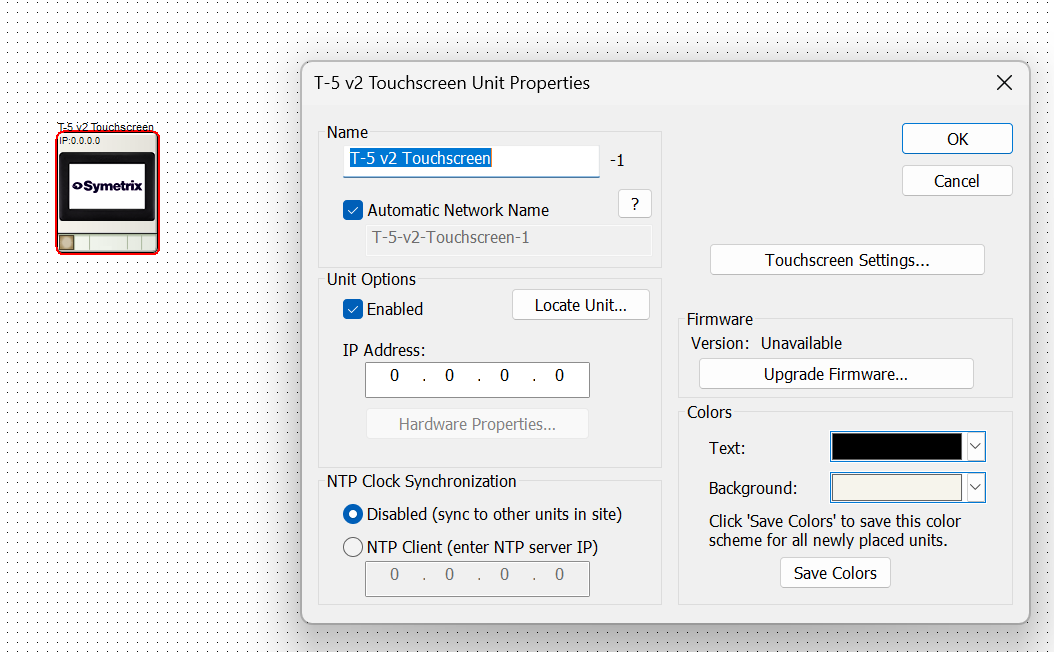
T-5 v2, T-7, and T-10 touchscreens need firmware 9.0.4 or later to work with Cognio DesignOps. Cognio DesignOps cannot update a touchscreen's firmware. If an update is needed, use Symetrix Composer:
- Launch Composer.
- Add the touchscreen, such as a T-5 v2 Touchscreen, to a Site.
- Open the touchscreen's Unit Properties.
- Click Locate Unit... and choose the physical touchscreen on the network. The Firmware section then shows the version the touchscreen is running.
-
Click Upgrade Firmware..., navigate to the touchscreen firmware file, and click Open.
Default Directory:
C:\Program Files\Symetrix\Cognio DesignOps\Firmware\