Sync Site Dialog
The Sync Site dialog pushes or pulls the design for every device in the Site at once. To sync a single Space instead, see Syncing a Space.
To open the dialog, click the Sync indicator in the Navigation Bar.
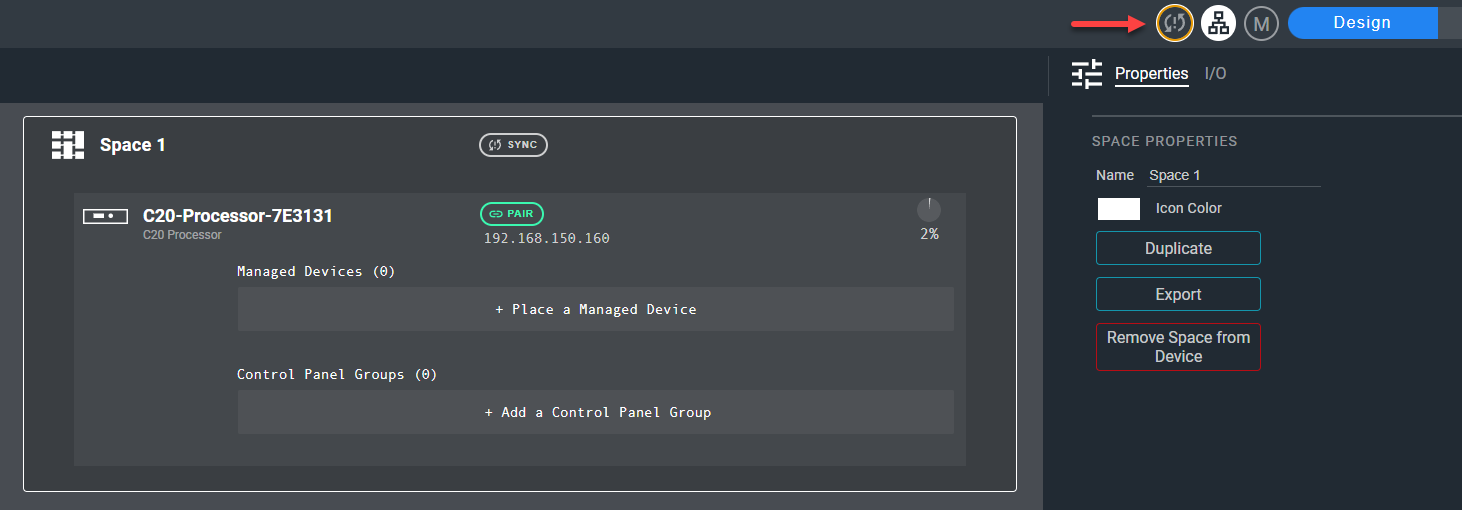
Device Table
The device table lists every device in the Site with the following columns:
| Column | Description |
|---|---|
| Device Name | The name of the device. |
| Sync Status | SYNCED, OUT OF SYNC, NEVER SYNCED, or NOT PAIRED. |
| Time of Last Sync | When the device was last synced. Shows a dash if the device has never been synced. |
| Firmware Version | The firmware version reported by the device. Shows NOT FOUND if the device has not reported a firmware version. |
Push
Click Push to send the design from DesignOps to all devices.
- Push is available only when every device in the Site is paired.
- If any device is running a different design, Cognio asks you to confirm before overwriting it. This cannot be undone.
Pull
Click Pull to replace the design in DesignOps with the design currently running on the devices.
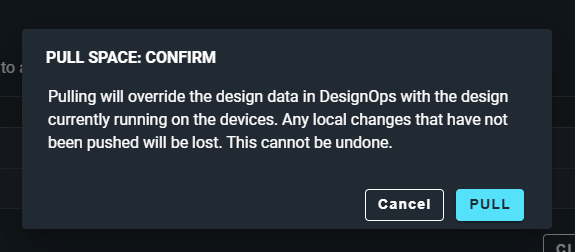
Before pulling, Cognio warns you that any local changes that have not been pushed will be lost and cannot be recovered. Click Pull to continue, or cancel to return to the Sync Site dialog, where you can choose Push instead.
Resync
If some devices still report needing a resync after the automatic resync attempts, the dialog says so and the Push button is replaced by Resync. Click Resync to try again, or close the dialog and try later.
Close
Click Close to close the dialog without syncing.