Output Module Features
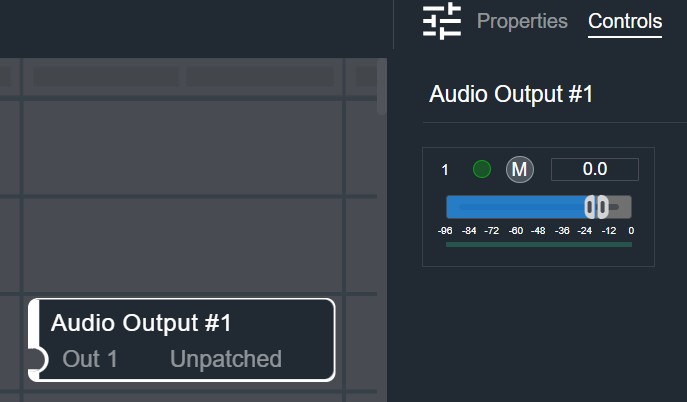
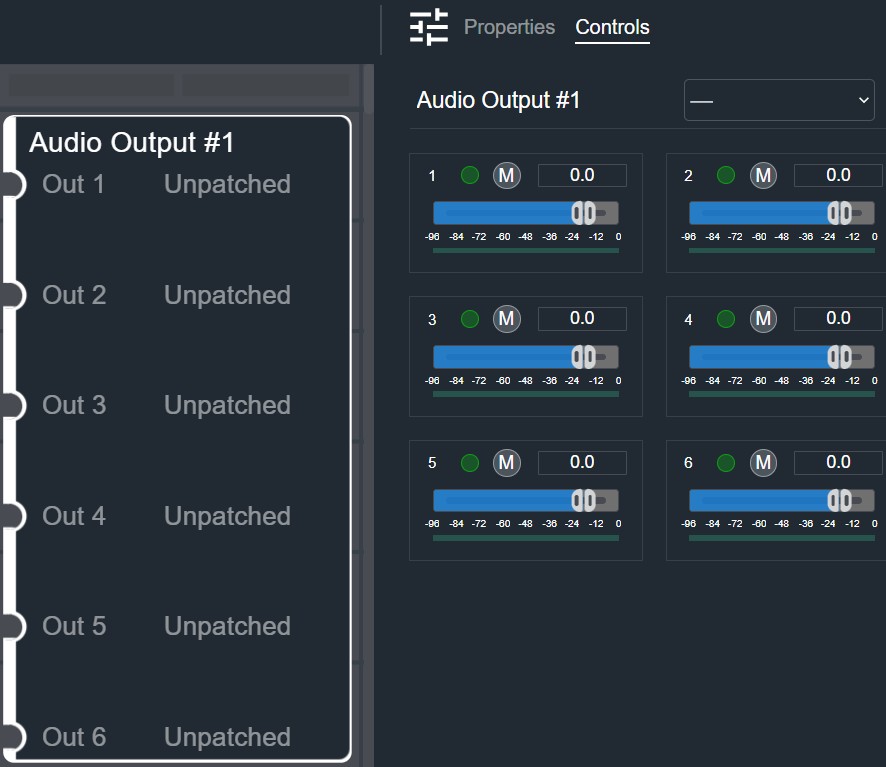
When you first add an output module to the signal-flow work area, it has one input and the output is unpatched. The Controls tab shows one main fader, Mute, and indicators. Output modules are added at the end of the signal flow and patch the final output to the output devices.
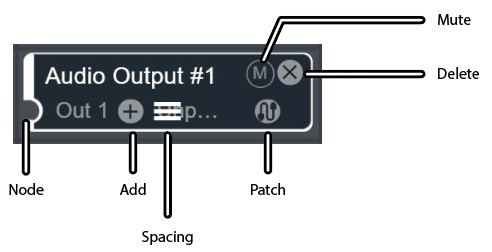
Hover over the module to show the available options, such as adding an output, patching to an output device, muting the output, adjusting the row spacing, and deleting the module.
Patching
- Click the patching icon on the output module.
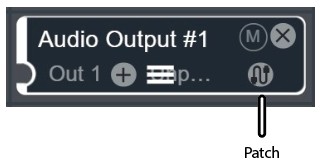
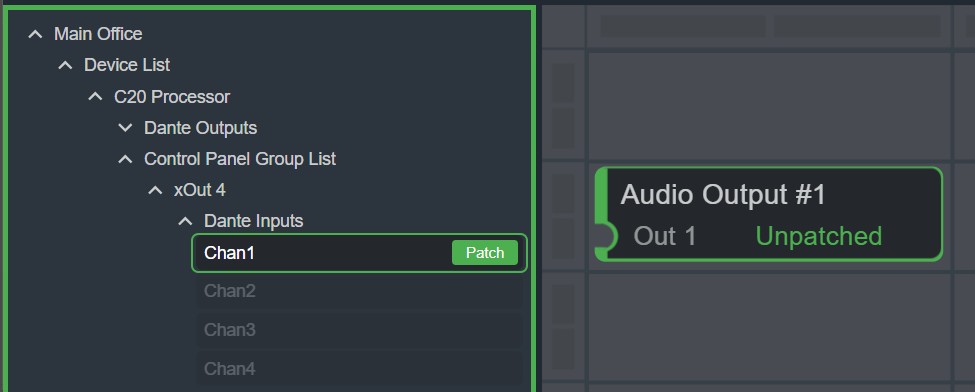
- After a short delay, Cognio shows a green highlighted column on the left with the available output channels. The available channels depend on the devices added to the room in Site View. If no devices have been added to the room, the list is quite long and appears under Unspecified Cognio Device. In this example, an xOut 4 device is used in the room, and its Dante Input Channel 1 is highlighted. Click Patch to connect the Audio Output module to this Dante input.
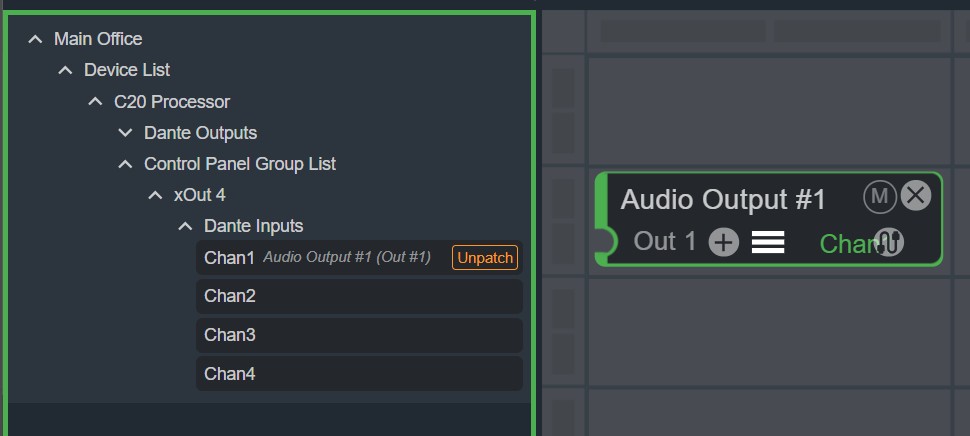
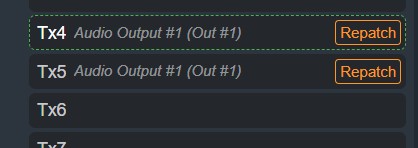
- Repatching lets you make new connections without first disconnecting the existing connection.
Adding a Channel
Click the plus sign in the audio output module to add another output channel. Click the minus sign to delete one. Patch the new channels the same way as the first output.
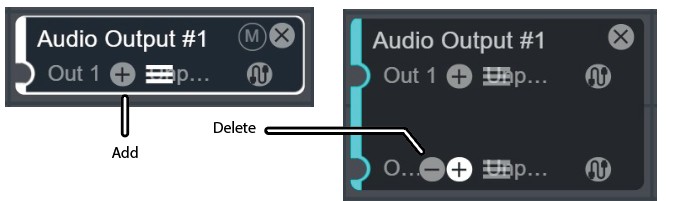
As you add more output channels, the Controls tab shows the output faders, mute, and numeric readout for each output.
Adjusting the Row Spacing
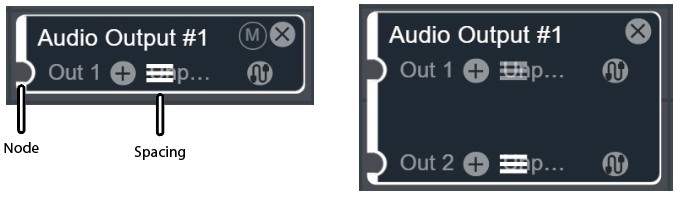
Click and drag the spacing handles to increase or decrease the physical spacing between rows. Any other modules close below this one move downward automatically. Alternatively, click and drag the output nodes to change the spacing.
Muting a Module
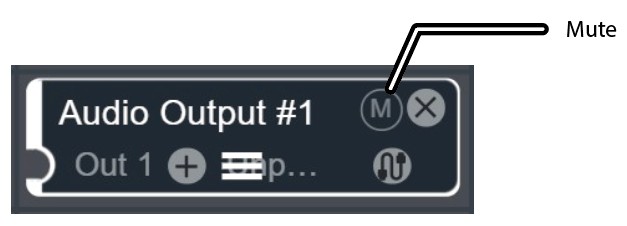
Hover in the top-right corner of the module and click the M to mute the module. The M turns into a red circle. Click it again to unmute. Individual channels can be muted in the Controls tab.
Deleting a Module
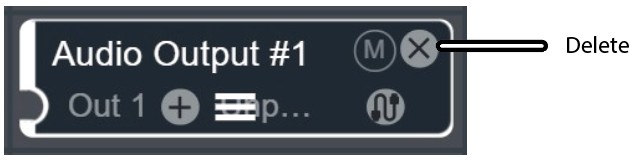
Hover in the top-right corner of the module and click the X to delete the module. Press Ctrl+Z to undo the deletion.