Site View Toolkit
The Toolkit is the panel on the left side of Site View. It lists everything you can add to a Site — Spaces, Cognio Smart Devices, Managed Devices, and Control Panel Groups. To add an item to your design, drag it from the Toolkit onto the workspace.
At the top of the Toolkit, use the search field to filter the lists by name. Each section can be collapsed or expanded by clicking its heading.
Spaces
The items you can add to build out your Site's processing.
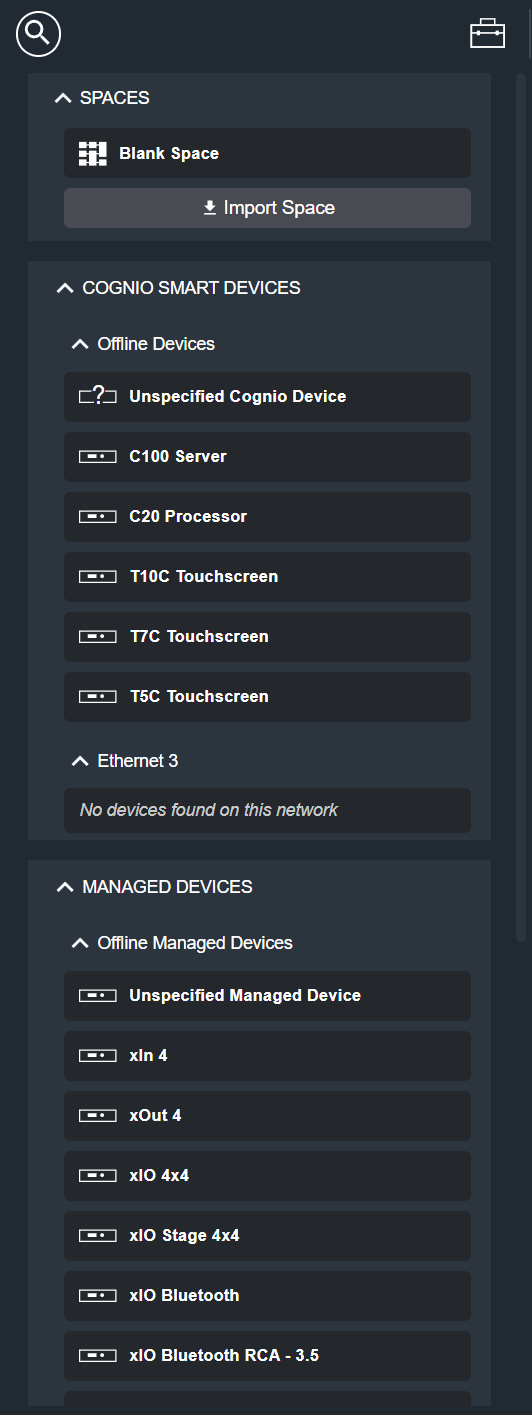
- Blank Space — Drag onto the workspace to add a new, empty Space.
- Any Spaces you have saved also appear in this list.
- Import Space — Imports a Space from a
.cogspacefile so it can be reused in this Site.
When you select a Space on the workspace, you can configure it in the Space Properties tab.
Cognio Smart Devices
The Cognio hardware you can add to the Site. This section is divided by availability:
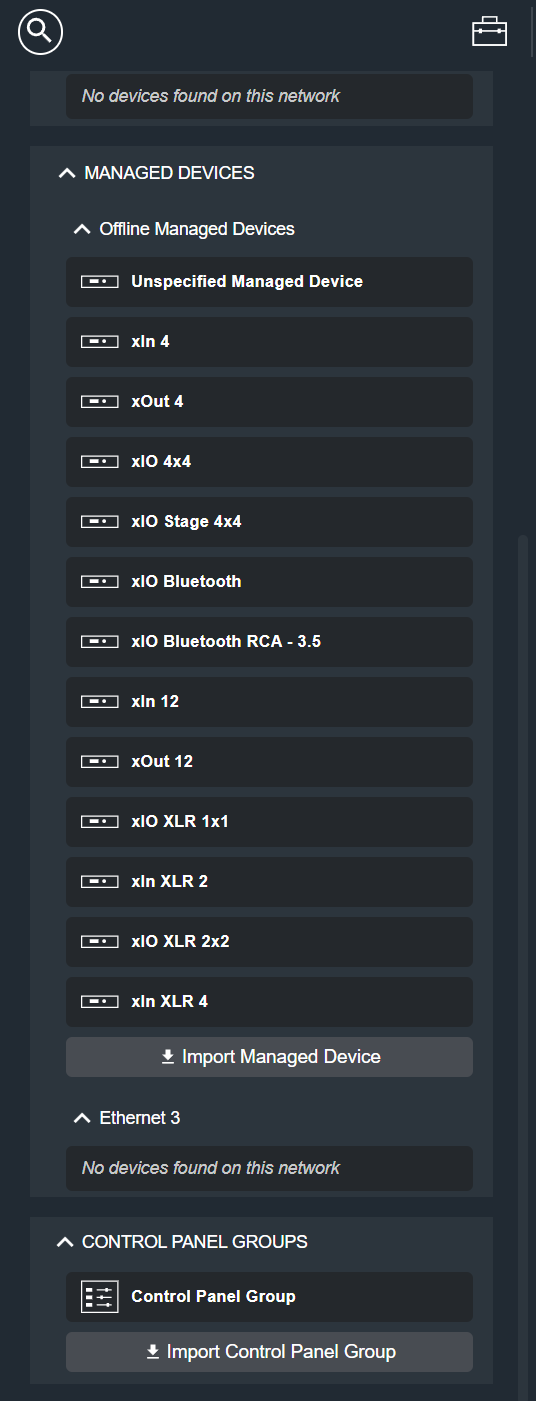
- Offline Devices — A catalog of Cognio Smart Device types you can add before the hardware is on the network, such as the Unspecified Cognio Device, C100 Server, C20 Processor, and the T10C, T7C, and T5C Touchscreens. The Unspecified Cognio Device lets you design before committing to a specific product.
- Online Devices — One list per selected network (for example, Ethernet 3), showing the Cognio hardware discovered on that network. A network with no hardware shows "No devices found on this network."
When you select a Smart Device on the workspace, you can configure it in the Smart Device Properties tab.
Managed Devices
The non-Cognio (Dante or other) hardware you can add to the Site. Like the Cognio Smart Devices section, it is divided by availability:
- Offline Managed Devices — A catalog of managed device types you can add before the hardware is on the network, such as the Unspecified Managed Device and the xIn, xOut, and xIO device families. Any managed device drivers you have imported also appear here.
- Online Managed Devices — One list per selected network, showing the managed hardware discovered on that network. A network with no hardware shows "No devices found on this network."
- Import Managed Device — Imports a managed device driver so the device becomes available in the catalog.
When you select a Managed Device on the workspace, you can configure it in the Managed Device Properties tab.
Control Panel Groups
The Control Panel Groups you can add to the Site.
- Control Panel Group — Drag onto the workspace to add a new Control Panel Group.
- Any Control Panel Groups you have saved also appear in this list.
- Import Control Panel Group — Imports a Control Panel Group from a file so it can be reused in this Site.
When you select a Control Panel Group on the workspace, you can configure it in the CPG Properties tab.