Working with Modules
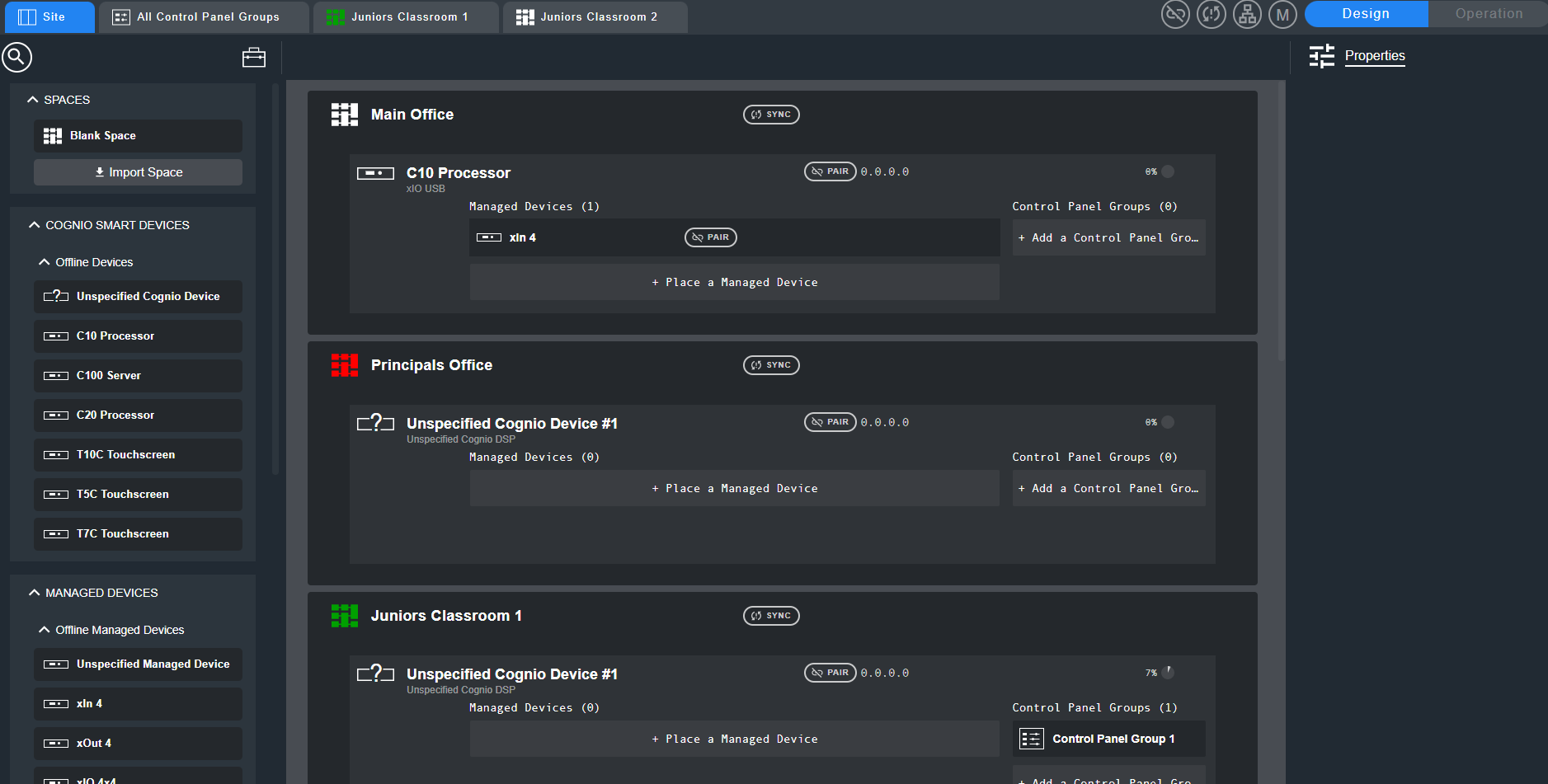
This example uses a school site with a Main Office, Principal's Office, and Classroom. The Site View shows devices Toolkit in the left column, spaces in the center, and the Modifier Panel showing the properties in the right column.
Create a Signal Flow
- In Site View, click the room you want to open.
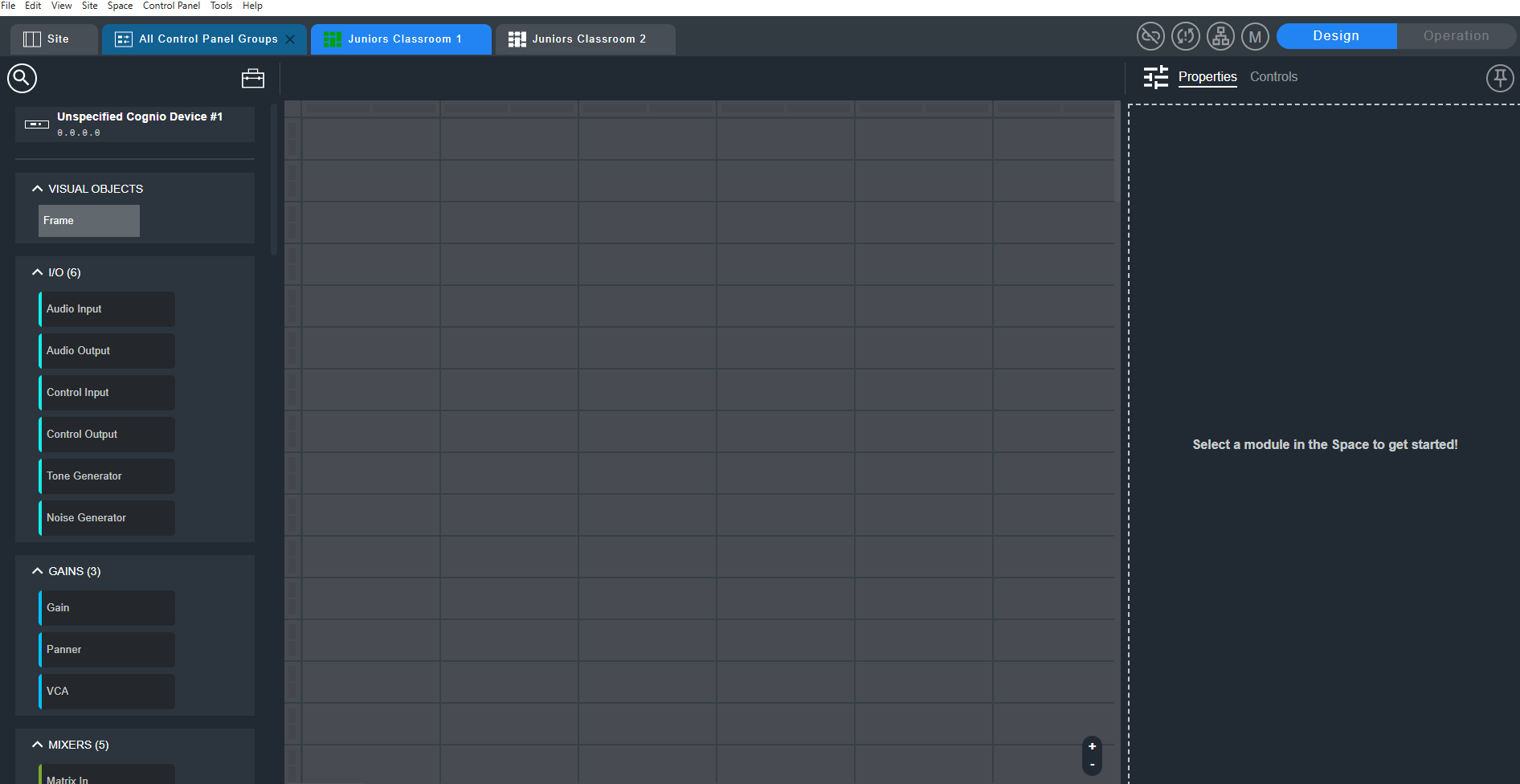
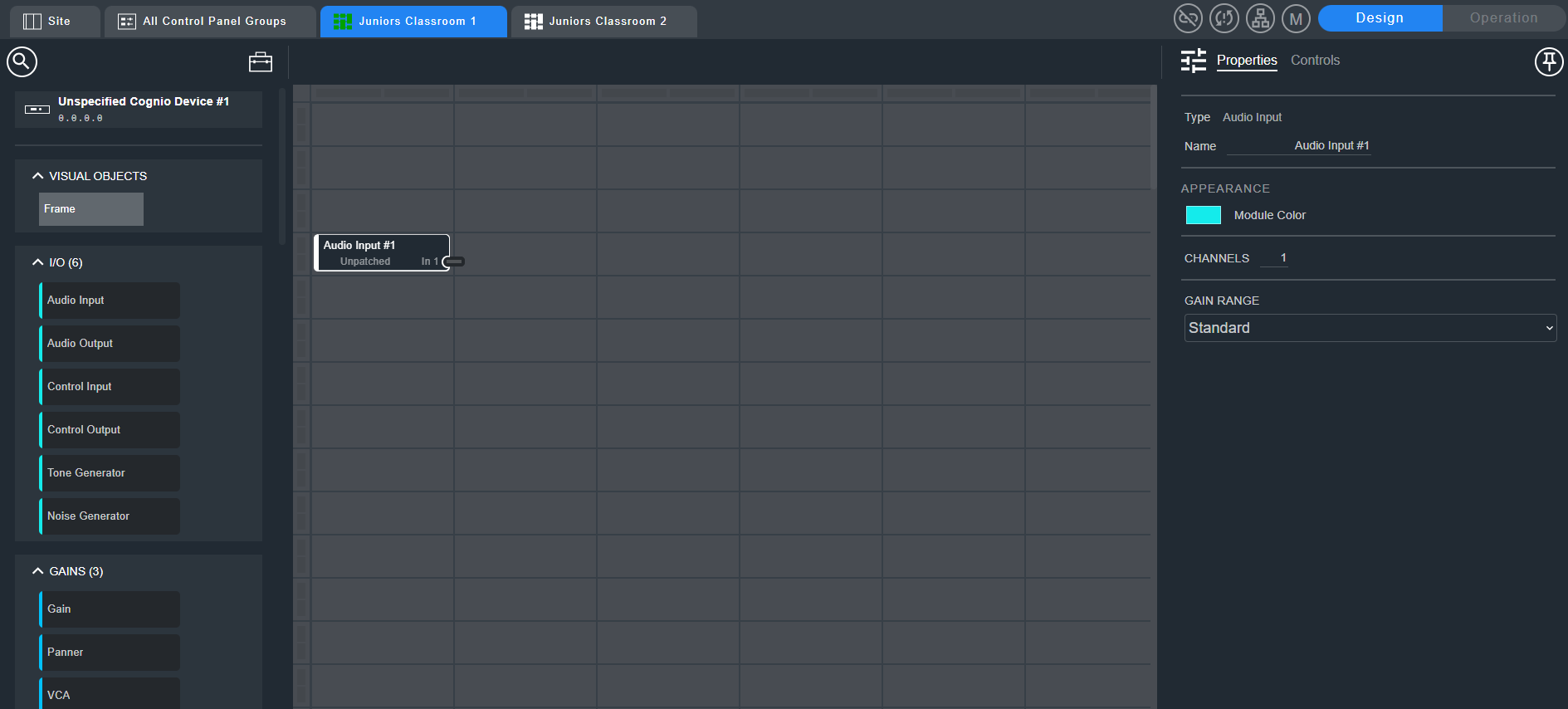
- Drag a module from the left column into the work area. Signal flow moves from left to right, so place the first module on the left. When the module is selected, use the Properties tab to change the module color, channel count, and gain range. For stereo operation, set the module to two channels.
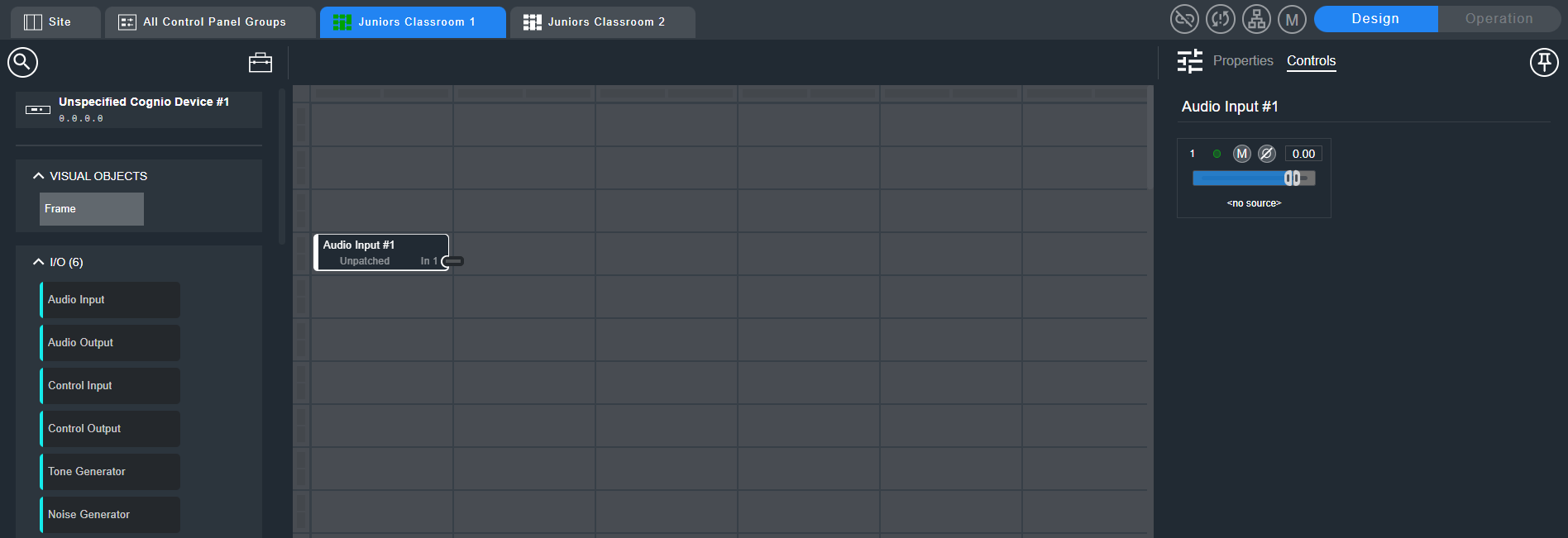
- Click the Controls tab to show the selected module's controls.
- Add another module, such as Gain, to the right of the first module. If you place it in the same horizontal row, Cognio automatically creates the wiring connection. Move the module up or down to remove the connection.
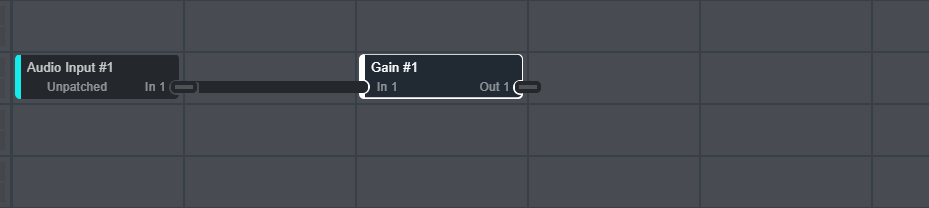
Insert and Replace Modules
- Add another module between two existing modules to replace the wire with that module.
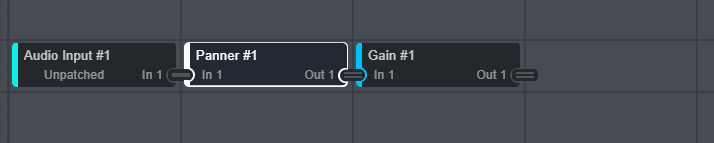
- Add another module to the right to continue the signal flow.

- To replace a module, drag the new module on top of an existing module. The existing module is briefly outlined in red before the new module drops into place.

- To insert a module in line between existing modules, drag it between the modules. The insertion position is briefly outlined in blue before the module drops into place. Other modules shift to the right.

Module Types
There are four main types of modules:
- Input modules that are patched to audio coming in from various sources, such as analog, USB, and Dante.
- Processing modules that have an equal number of inputs and outputs, for example 1 input to 1 output.
- Matrix and Mixer modules that differ in the number of inputs and outputs, for example 1 input to 5 outputs, or 5 inputs to 1 output.
- Output modules that are patched to audio output devices.
The next sections show details of these module types.