Function
Use the Function tab to define how a selected control behaves in Operation mode.
Open the Function Tab
- Click one control or select multiple controls in the CPG workspace.
- Click the
Functiontab in the Modifier Panel. - Configure the settings described below.
General Controls
Enable
Turn this on to make the control active.
- When enabled, the control performs its configured function.
- When disabled, the control does not perform its function and does not appear in Operation mode.
Show on All Panels
Turn this on to show the same control on every panel in the Control Panel Group.
- Edit the control from any panel.
- Apply the same Function and Design settings across all panels.
- Use this for shared controls such as navigation, presets, or admin actions.
Locked
Turn this on to prevent accidental movement.
- You cannot move a locked control on the panel.
- Multi-select drag prefers unlocked controls when the selection includes both locked and unlocked controls.
Mode
Choose the control function mode.
NoneParameterPresetNavigation
The selected mode adds mode-specific settings below the Mode field.
Scripting and Remote Access
Configure how your control is exposed to Lua scripting (the built-in scripting engine) and the Remote Control API.
When Mode Is Parameter
Remote Enable: Turn on remote API access for this control.Remote Name: Enter the remote API name.Remote Nameis unavailable until you turn onRemote Enable.- Lua scripting is not available in Parameter mode.
When Mode Is Not Parameter
Script/Remote Name: Enter the name used by Lua scripts and by the Remote Control API.Remote Enable: Turn on remote API access.Remote Enableis unavailable until you enter aScript/Remote Name.
Parameter Range
Set how the control value behaves. This range applies to the control itself.
Units: Choose display/semantic units.dBRatioHzTimePanCountPercentCustom
Taper: ChooseLogorLinearscaling (how quickly values change across the control travel).Max: Set the highest allowed value.Min: Set the lowest allowed value.Unity: Set the unity reference value (the neutral reference point, often0 dB).Default: Set the value used when you reset the control to default.Increment/Decrement Amount: Set the step size used by increment/decrement actions.
Modes
None
Use this mode when you want a control for script/remote use only and no parameter, preset, or navigation behavior.
Parameter
Use this mode to map the control to a module parameter.
- Select a
Signal Path(the route through your DSP design). - Select a
Modulein that signal path. - Select a
Parameter Groupin that module. - Select a
Parameterin that parameter group.
Control availability depends on previous selections:
Moduleis unavailable until you select a Signal Path.Parameter Groupis unavailable until you select a Module.Parameteris unavailable until you select a Module.
Preset
Use this mode to assign preset actions.
Command
Choose one command:
RecallRecall Last Recalled PresetRecall Next in Group- If the last recalled preset is in the selected preset group, the system recalls the next preset by order in that group.
- If the last recalled preset is not in the selected group, or no preset has been recalled yet, the system recalls the first preset in that group.
Recall Previous in Group- If the last recalled preset is in the selected preset group, the system recalls the previous preset by order in that group.
- If the last recalled preset is not in the selected group, or no preset has been recalled yet, the system recalls the last preset in that group.
Update(stores current values of previously assigned controls)
Preset Group Selection
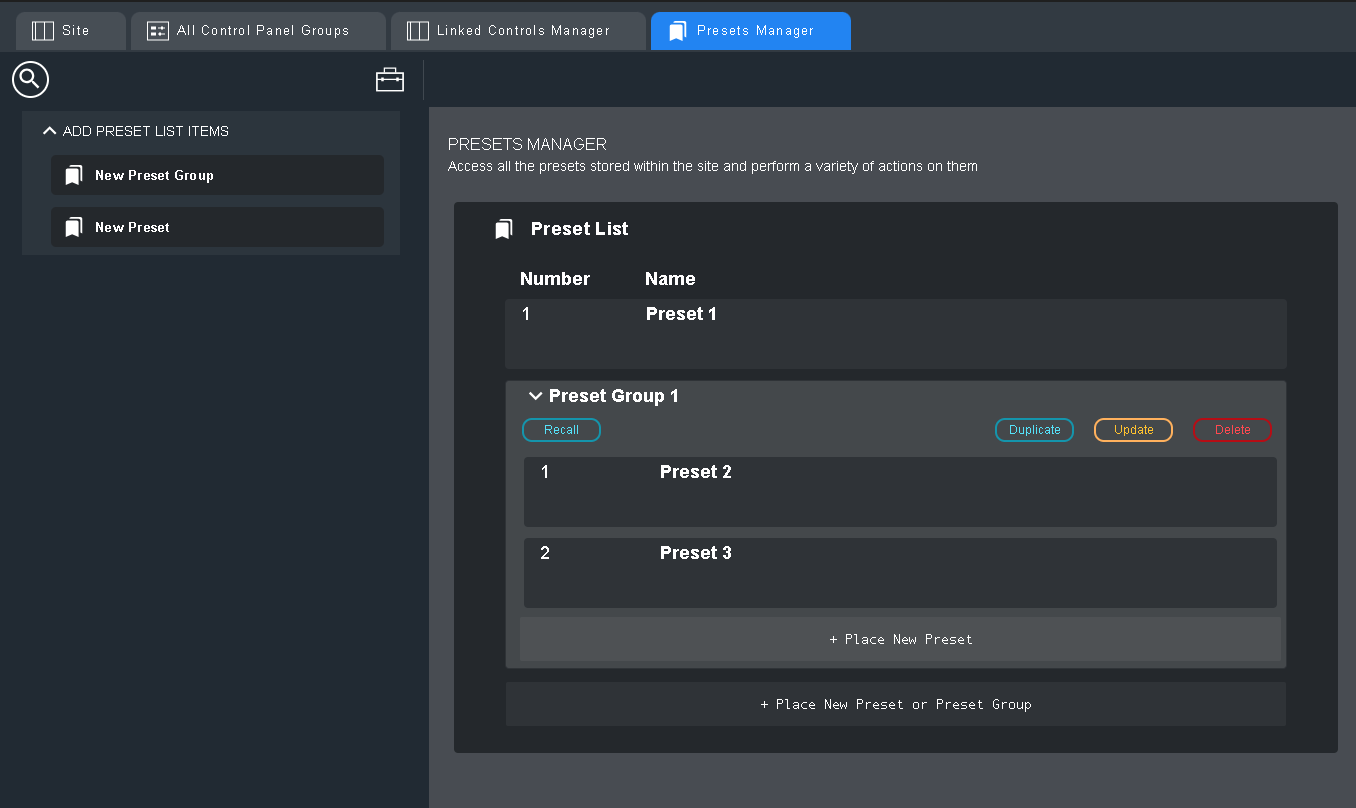
Select a preset group for group-based commands. The list shows all current preset groups.
Preset Selection
Select a preset for Recall or Update. The list shows all current presets and preset groups with number and name.
Last Recalled Preset is also available in Auto Text. This displays the name and number of the most recently recalled preset.
Navigation
Use this mode to assign navigation behavior.
Command
Choose one command:
Navigate to Next Control Panel- Moves to the next panel in the current Control Panel Group.
- If the control includes a text element, the text defaults to the target control panel name unless you override it.
Navigate to Previous Control Panel- Moves to the previous panel in the current Control Panel Group.
- If the control includes a text element, the text defaults to the target control panel name unless you override it.
Navigate to Specific Control Panel- Lets you choose a specific control panel from any Control Panel Group.
- If the control includes a text element, the text defaults to the target control panel name unless you override it.
Navigate to All CPG View- Opens or switches to the All CPG view.
- In the web app, this opens the view where you choose among loaded CPGs.
Navigation Control Panel List- Auto-populates radio buttons or a drop list with control panels by name.
- Works best with
Show on All Panels. - For faders/knobs, dragging can step through panels.
- For buttons, behavior matches next-panel navigation.
Control Panel Group
Select the target Control Panel Group when required by the command.
Control Panel Name
Select the target Control Panel in the selected group. This field is unavailable until you select a Control Panel Group.
Navigation Wrap
Turn this on to loop navigation.
- Moving next from the last panel goes to the first panel.
- Moving previous from the first panel goes to the last panel.