Processing Module Features
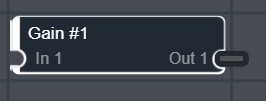
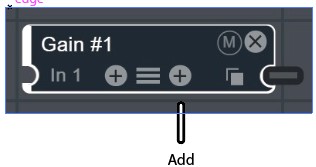
When you first add a processing module, such as Gain, to the signal-flow work area, the module has one input and one output by default.
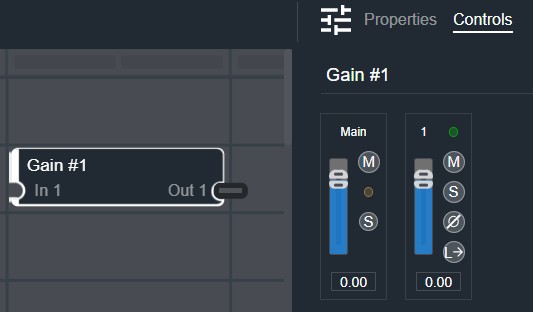
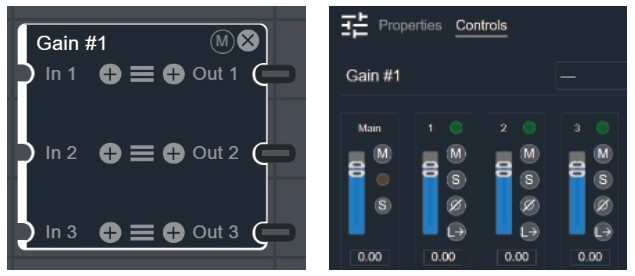
The Controls tab shows one main fader and one channel fader. As you add more inputs by clicking the plus signs, the number of channel faders increases.
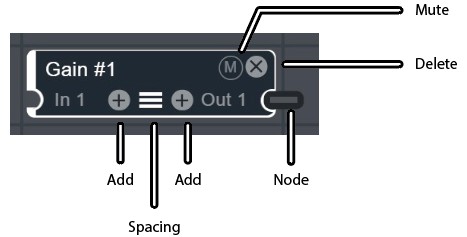
Hover over the module to show additional controls, such as adding a channel, changing the row spacing, copying a channel, muting the output, and deleting the module. The module outline turns white when selected.
Adding a Channel
Click the plus sign to add channels. In this example with three channels, the Controls section shows one main fader and three individual faders.
Adjusting the Row Spacing
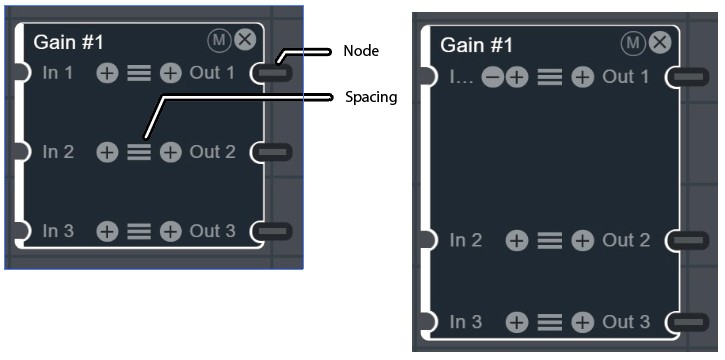
Click and drag the spacing handles to increase or decrease the physical spacing between rows. Any other modules close below this one move downward automatically. You can also use the nodes to change the spacing independently.
Copying an Output
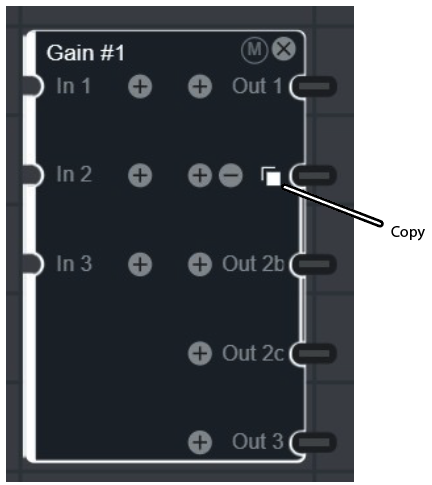
Hover over an output and click the copy icon to duplicate the output. For example, output 2 becomes 2a, 2b, and 2c. These three outputs are identical and are all controlled by the output 2 fader.