Pull Site From Hardware Dialog
The Pull Site From Hardware dialog retrieves the Site file archived on a Smart Device, such as a C20, so you can save it to your computer and open it in Cognio DesignOps. Use it when you need to work on a system and do not have its Site file, for example when supporting a system someone else installed.
To open the dialog, choose File > Pull Site From Hardware from the Menu Bar.
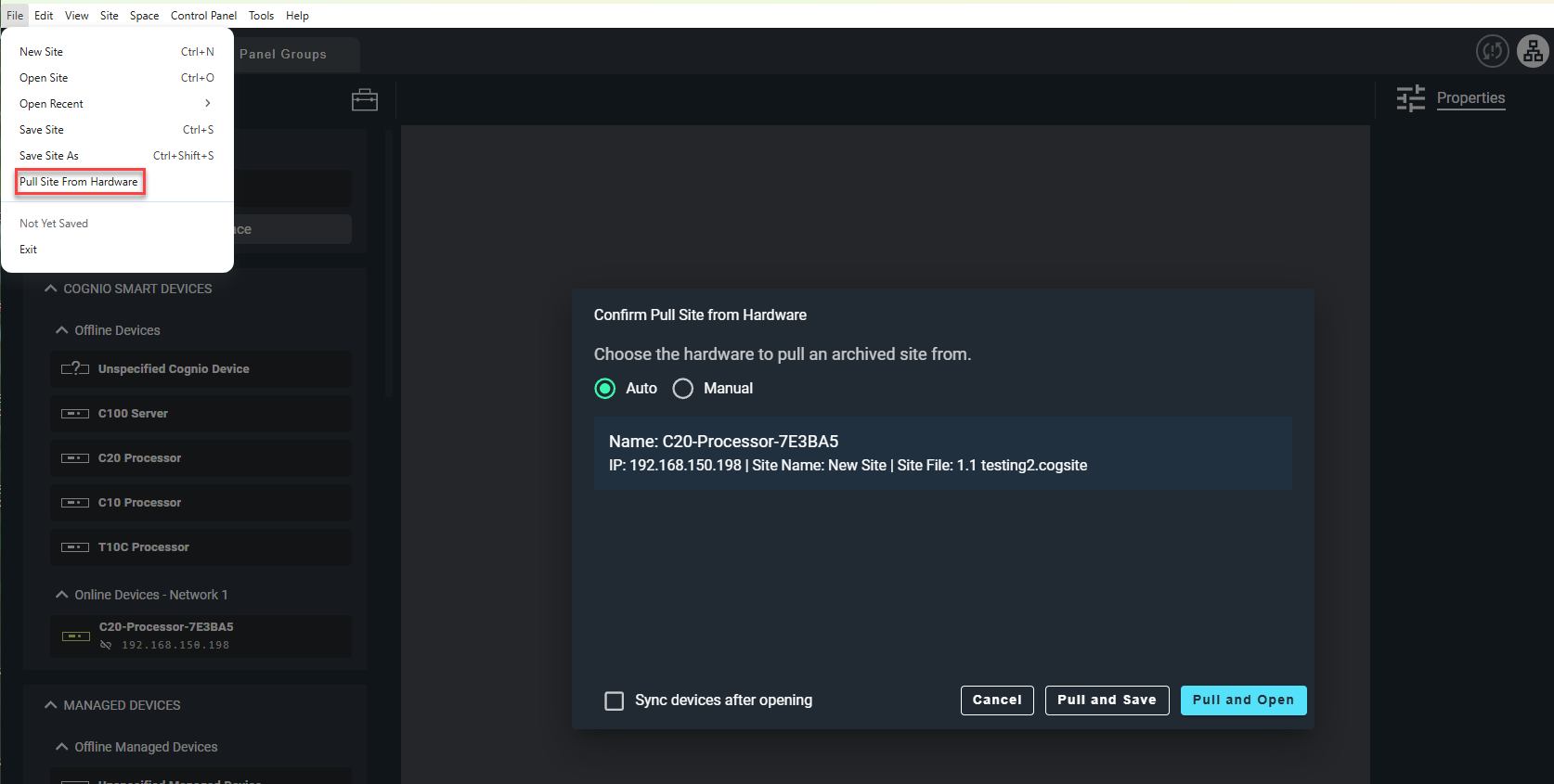
Choose the Device
Select Auto or Manual at the top of the dialog to choose how to find the device. Cognio remembers your choice for the next time you open the dialog.
- Auto — Lists the devices found on your selected networks that have a Site file archived on them. Each entry shows the device name, its IP address, the name of the Site, and the Site file name. Select the device to pull from.
- Manual — Pulls from a device at a specific IP address. Enter the Device IP Address and click Fetch Archive Info. If the device has an archived Site file, its name, IP address, Site name, and Site file name are shown.
Use Manual when the device you want is not listed, for example when it is on a different subnet. If a device is missing from the Auto list, also check your network selection. See Select Network(s) Dialog.
Pull the Site
Choose one of the following. Each asks where to save the Site file on your computer first, suggesting the archived file name.
- Pull and Open — Saves the Site file, then opens it in Cognio DesignOps.
- Pull and Save — Saves the Site file without opening it. A message confirms when the file has been saved.
- Cancel — Closes the dialog without pulling.
The buttons are unavailable until you select a device that has an archived Site file.
Sync Devices After Opening
Turn on Sync devices after opening before clicking Pull and Open to connect the opened Site to the hardware it came from. After the Site opens, Cognio:
- Re-pairs each device in the Site that is paired but not connected to the matching device found on the network.
- Pulls the design from the hardware for every Space, so the Site in DesignOps matches what is running.
This gets you connected to the system right away, with the status of every device available for troubleshooting. Devices are found on your selected Control and Audio networks. If a device cannot be found on the network, Cognio reports it and that device is not synced.
The option has no effect with Pull and Save.