Linked Controls Manager
Overview
The Linked Controls Manager is a site-level view where you can create, view, edit, and delete control link pairs. Open it from Tools > Linked Controls Manager. It opens as a tab alongside other manager views.
You can also create control links directly in the Controls tab of the Modifier Panel using a drag interaction. This page covers the Linked Controls Manager view only.
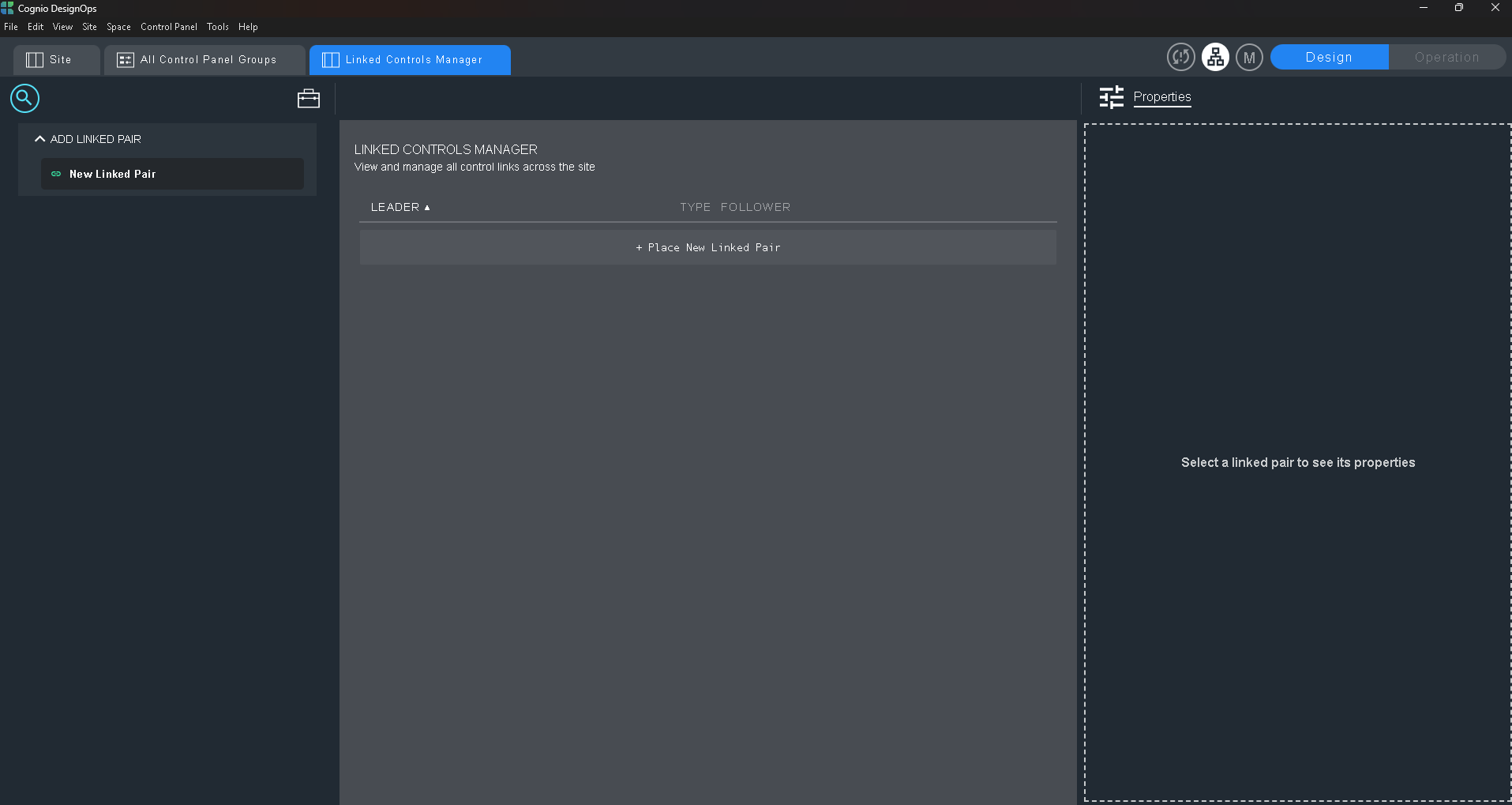
Layout
The Linked Controls Manager uses the standard manager layout:
| Region | Description |
|---|---|
| Tab bar | Displays the "Linked Controls Manager" tab |
| Left toolkit | Contains the New Linked Pair item |
| Central workspace | Displays the Linked Pairs list |
| Right sidebar | Shows Properties for the selected pair |
Left Toolkit
The toolkit panel contains a single New Linked Pair item — a draggable tile with an icon showing two controls connected by a dashed arrow.
Drag it to the drop zone at the bottom of the Linked Pairs list, or click the drop zone directly, to add a new pair. The new pair is created with both Leader and Follower set to Unassigned and is automatically selected, displaying its Properties in the right sidebar.
Linked Pairs List
Header
The workspace is labeled Linked Controls Manager with the subtitle "View and manage all control links across the site."
Columns
The Linked Pairs list has the following columns:
| Column | Description |
|---|---|
| Leader | The leader control, displayed as "Space Name - Module Name - Control Name" |
| Type | Connection type icon |
| Follower | The follower control, displayed as "Space Name - Module Name - Control Name" |
| (no label) | Delete button |
Click any column header to sort the list. Click the same header again to toggle between ascending (A–Z) and descending (Z–A) order.
Pair Rows
Each row represents one linked pair and displays:
- Leader control chip — a colored dot and control name. Blue for Leader/Follower pairs; pink-purple for Bidirectional pairs.
- Connection type icon — a dashed arrow between the two controls. A single right-pointing blue arrow indicates Leader/Follower; a double-headed green arrow indicates Bidirectional.
- Follower control chip — a gray dot and control name.
- Delete button — appears when you hover over the row. See Deleting a Linked Pair.
If either control in a pair has not been assigned yet, it displays as Unassigned in italicized, dimmed text with an empty dot.
Click a row to select it. The selected row has a blue-tinted background and the pair's Properties appear in the right sidebar.
The same control can appear in multiple linked pairs — there is no restriction on reuse.
Drop Zone
A + Place New Linked Pair row at the bottom of the list accepts drags from the toolkit item, or can be clicked directly, to add a new pair. Pairs created elsewhere in Cognio appear here automatically, following the current sort order.
Properties Panel
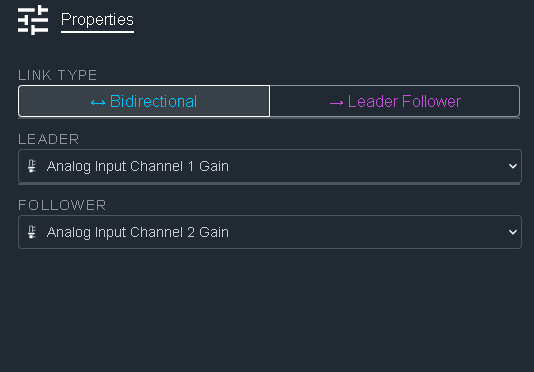
When you select a pair, the right sidebar shows its Properties.
| Field | Description |
|---|---|
| Link Type | Toggle between → Leader/Follower and ↔ Bidirectional. The active type is highlighted — blue for Leader/Follower, pink-purple for Bidirectional. |
| Leader Control | A hierarchical tree picker organized by Signal Path → Module → Control. Includes all control types — faders, buttons, meters, and readouts — with an Unassigned option. |
| Follower Control | A hierarchical tree picker with the same organization and options as the Leader Control picker. |
| Delete | Deletes the linked pair. See Deleting a Linked Pair. |
When no pair is selected, the sidebar shows: "Select a linked pair to see its properties."
Creating a New Pair
When you create a new pair, both controls start as Unassigned. The link is not created until you assign both a Leader and a Follower. Once both are set, the pair deselects automatically and appears in the list. Click it to continue editing.
Editing an Existing Pair
Changing the Leader or Follower on an existing pair replaces the link immediately — the old link is removed and the new one is created in a single step. Because a pair is identified by its two endpoints, the pair deselects after the change. Find the updated pair in the list and click it to continue editing.
Deleting a Linked Pair
You can delete a linked pair from the list or from the Properties Panel:
- From the list: Hover over a pair row and click the delete button (✕) that appears on the right.
- From the Properties Panel: Click the Delete button while the pair is selected.
Either method opens a confirmation dialog. Review the pair preview — showing the Leader, connection type icon, and Follower — then click Delete to permanently remove the link. Click Cancel, or click outside the dialog, to dismiss without deleting.